

-
AutoSave is automatically enabled when creating new files, but may be turned off by the user. The time interval for autosaving may be set by the user, but defaults to 10 minutes. Autosaved copies are not automatically implemented; load any autosaved copy from the Autosave Menu, then save it manually, and it will become the working copy. The user is prompted before autosaving, and an option exists to accept or skip the autosave.
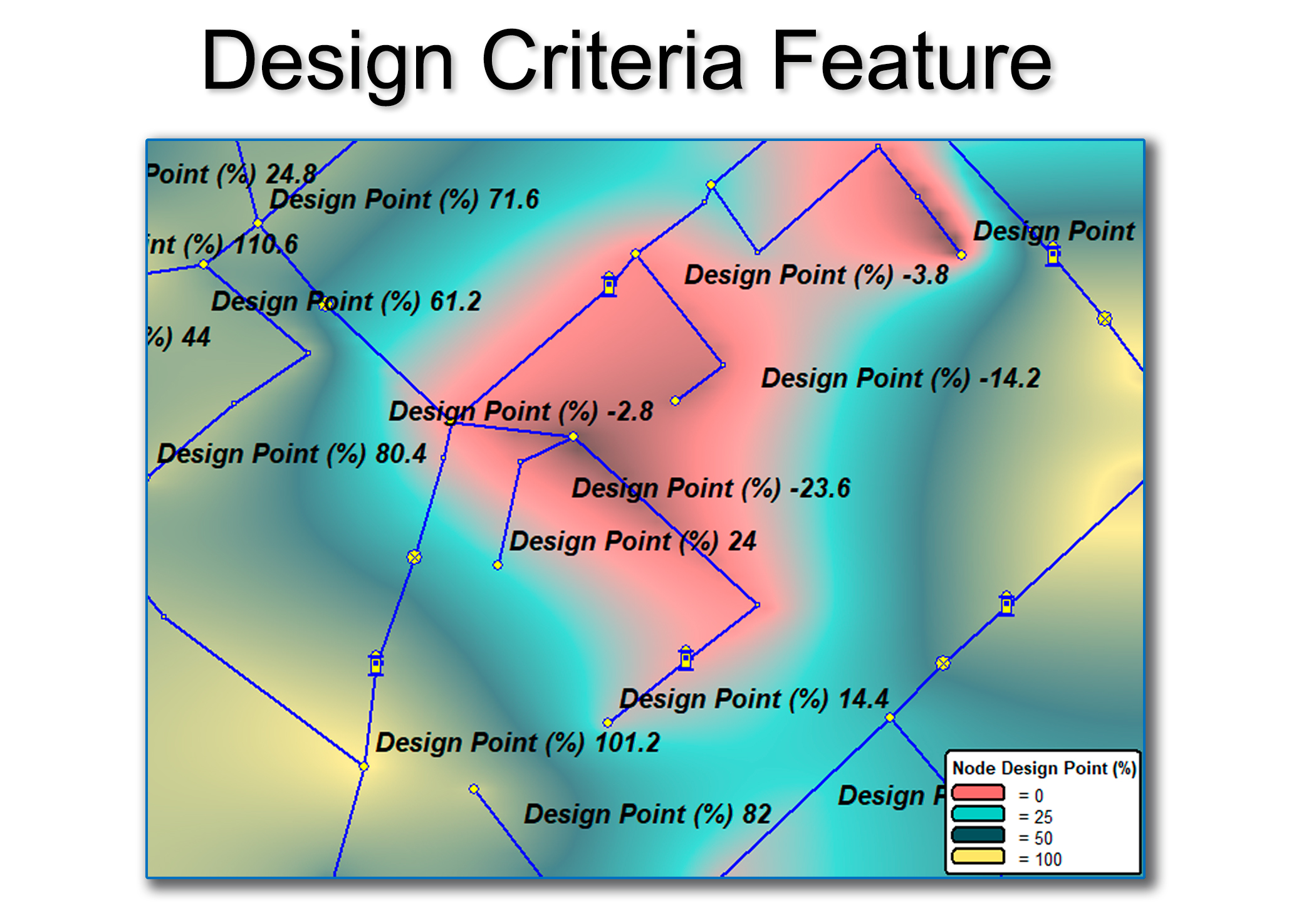
This feature allows the user to quickly discern whether the pressure ranges throughout the model fall into an acceptable design criteria range (e.g., 30 psi to 100 psi for a municipal system).
The Design Point is the percent difference between the user-defined upper/lower pressure limit for each node (which are set using either the Global Values or Local Values) and the pressure value calculated for that node by the model during analysis. So, for example, if the Design Point = 75.5%, then the calculated pressure is 75.5% of the way to the Design Point. The formula for calculating the design point is 100% * (Value – Min Value)/(Max Value – Min Value). See more here (Design Point Page).
The Advanced Error Check feature was introduced in 2024. In 2026, the feature has been upgraded, and checks for an additional 32 possible error conditions.
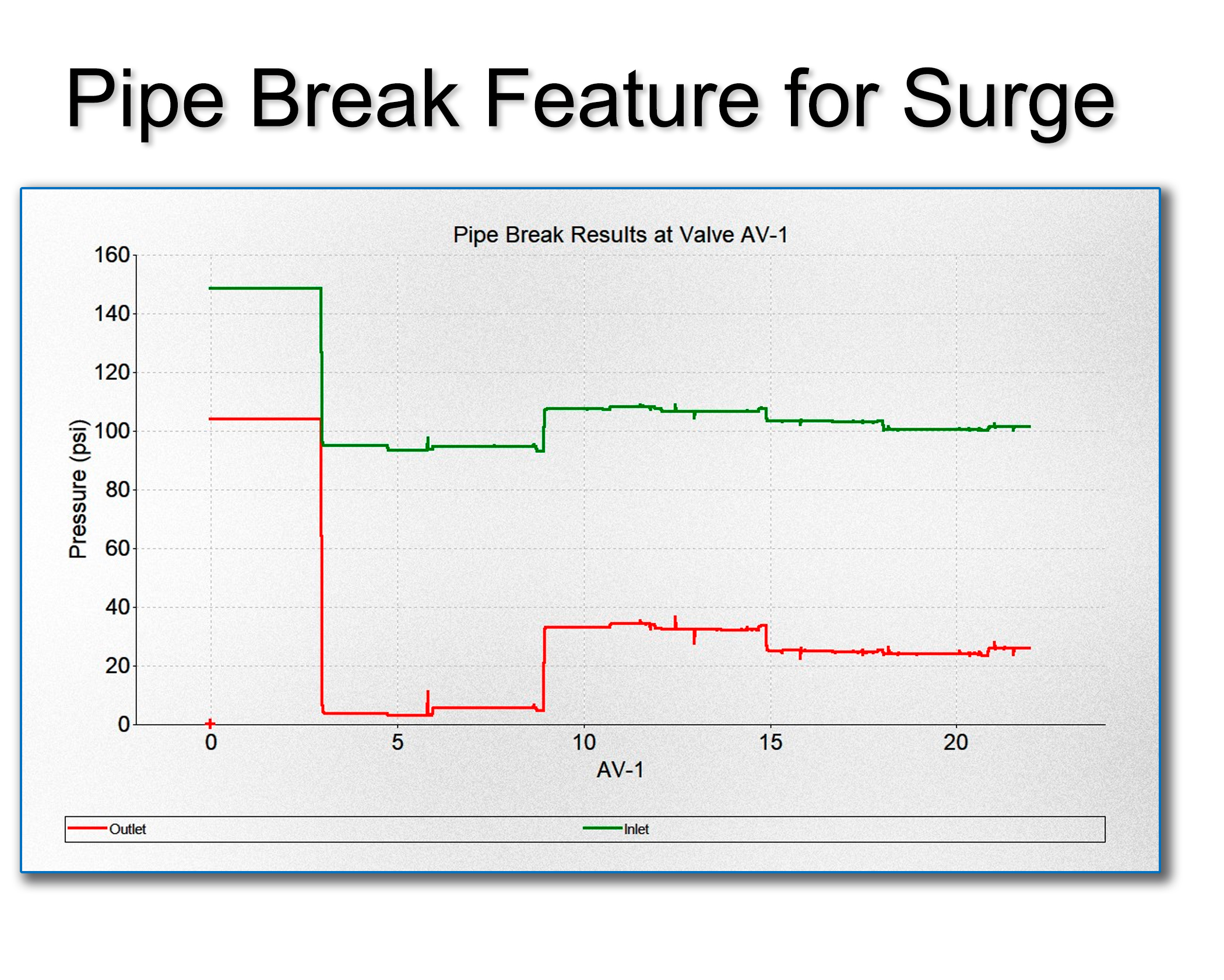
Prior to Pipe2026, Surge incorporated this feature, which assumed a pipe break surface area of 100% (complete failure). Now, users can input a value between 0.0 and 1.0 to set the relative area of the pipe break.
-
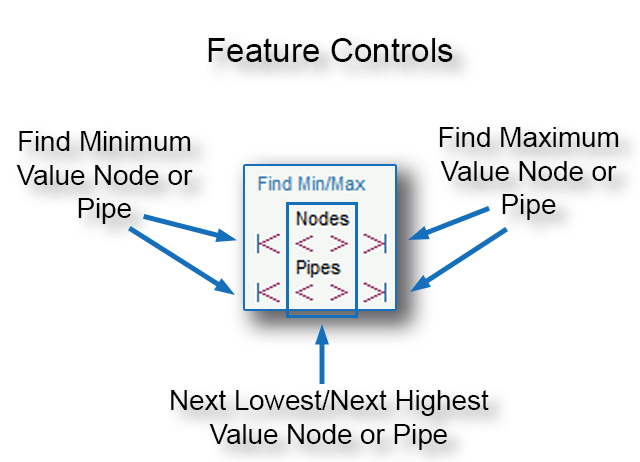
This feature toggles sequentially between nodes with higher or lower values of Result-A, including buttons to immediately display the node or pipe with the highest or lowest value of Result-A. Result-A is a placeholder that can be set to display the following system variables:
Nodes
- Pressure.
- Hydraulic Grade Line.
- Grade.
- Flow/Demand (Some Nodes Only).
- Volume (Some Nodes Only).
Pipes
- Flow.
- Velocity.
- Headloss.
- Headloss per Thousand Map Units (Feet or Meters).
- Volume (Some Nodes Only).
Sometimes issues occur when users run modeling files that are stored on external locations, including cloud locations, and shared or network drives. This feature is designed to allow users to seamlessly maintain project folders in these external locations. Upon opening a modeling file, this feature copies the file from the shared drive/remote folder to the local folder, and the user works from there until the file is closed. At this point, the modeling file is written to the shared drive. This is useful for users who are required to maintain a central store of files.
QuickView limits map features, making loading and editing large modeling files faster. When a large model file is detected during loading, the interface automatically prompts the user with an option to enable this feature. It is automatically turned off when making presentations, or when the Map Refresh button is clicked. QuickView can easily be turned on and off while editing a file.
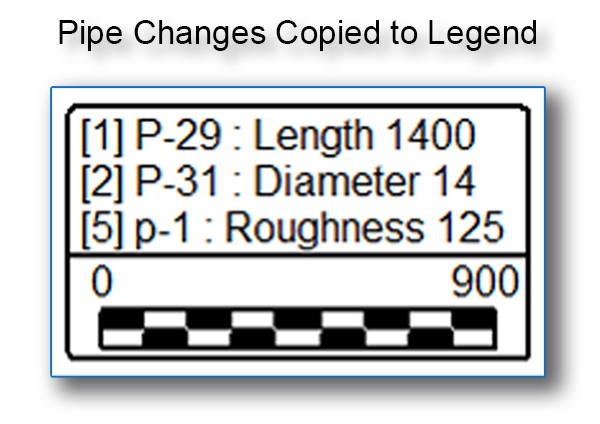
Like the existing feature for node changes, this new feature copies any pipe changes present in the model to the Legend. Pipe changes can include changes in length, diameter, roughness and minor loss K-values, among others. Pipes can also be opened and closed from the Changes Menu, and the pipe status (open or closed) will also be copied to the legend.

-
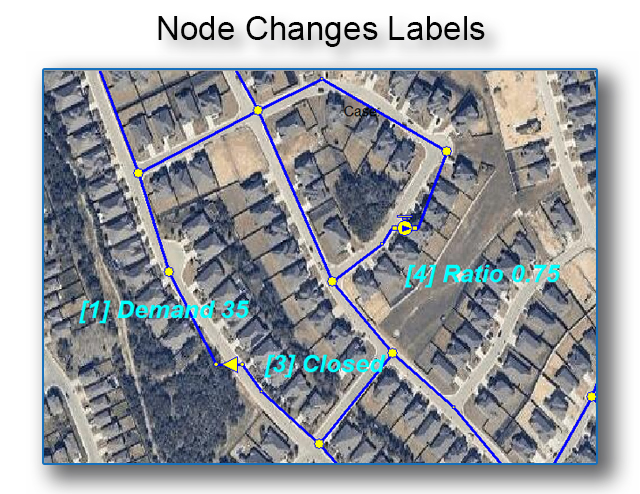
Node changes can now be seen as text labels in the Map Area.
When importing modeling files from other software environments (EPANET, AutoCAD, ArcGIS, Google Earth and Microsoft Excel spreadsheets), often nodes appear that are disconnected from the surrounding pipes. The interface can now snap any type of end node to the nearest pipe. Formerly, only hydrants and on/off valves could be snapped. See more here (Criss-Cross Features Page).
This feature prevents users other than the model creator from making changes. Other users can always analyze and generate reports, but not edit the modeling file. The original user can always make edits. This feature can be turned off as needed.
This feature significantly speeds up the deletion of Intermediate Nodes, particularly when deleting a fixed number of nodes.
For a list of KYPipe features, click here : All KYPipe features.
For a list of Surge features, click here: All Surge features.